
To find an Asset in the Bucket:
Step 1 - Go to the menu  in the upper right corner of the screen;
Step 2 - Click in Bucket  ;
;
Step 3 - On the toolbar you will have the options:

 File sorting - filter by newest or oldest files;
TYPE - File type - filter by the type of file you want: Image, PDF, Documents, Audio, Video and 3D;
VIEW - see the files you uploaded (My uploads); and, when there is integration, see only the ones that have an error.
PERIOD - choose the period in which you uploaded the file on the calendar, either on the same day you uploaded it or any period you want.
When selecting the filters you want, TAGs will be added to help you visualize what is being searched.
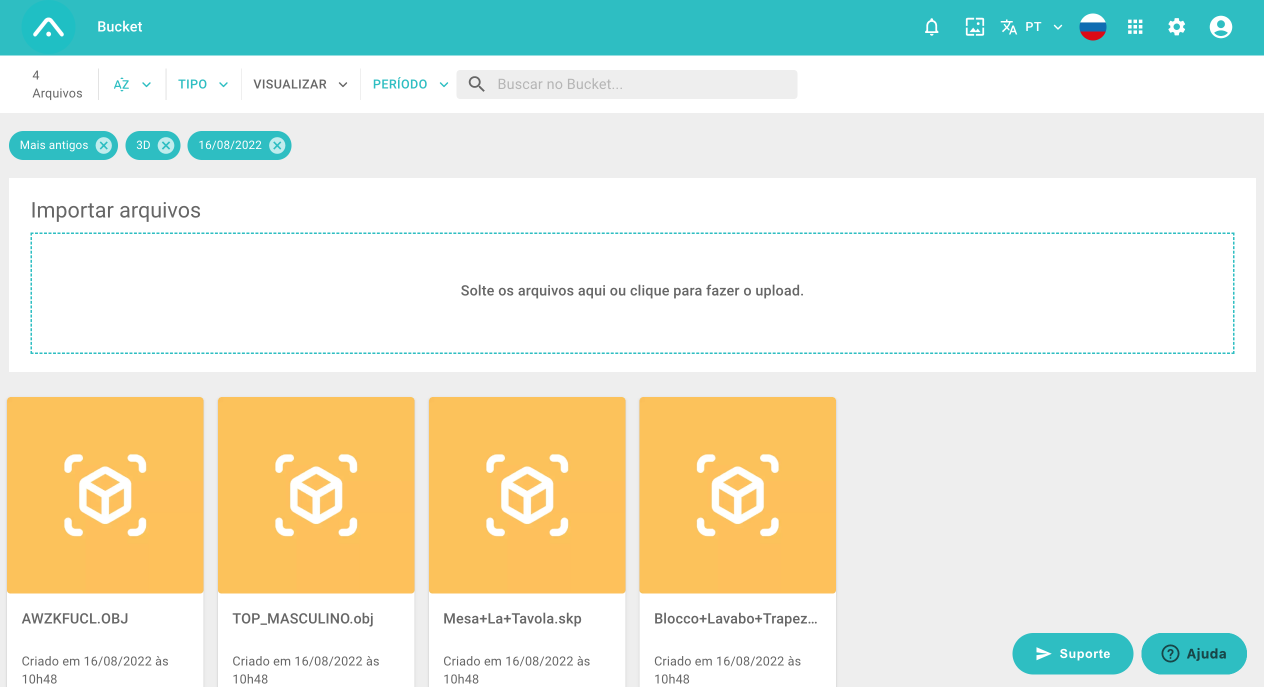
Step 4 - Through the space "Search in the Bucket"  in the upper right menu, search by name, code or any form that has been used in the naming of the searched asset;

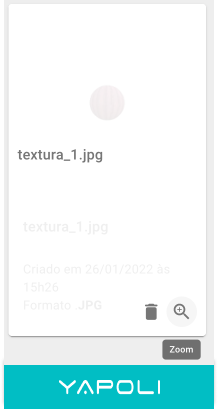
If desired, you can zoom the asset to get a better view of the file, you just need to hover your mouse over the image and the zoom icon will appear.
Step 5 - Ready!
Learn more: What happens when I delete Asssets in the Bucket?
Comments
0 comments
Article is closed for comments.