
To apply the personalization logos, it is necessary to follow the steps listed below:
Step 1 - Click on Settings in the upper right corner of the screen;
Step 2 - Click on the "Platform" page;
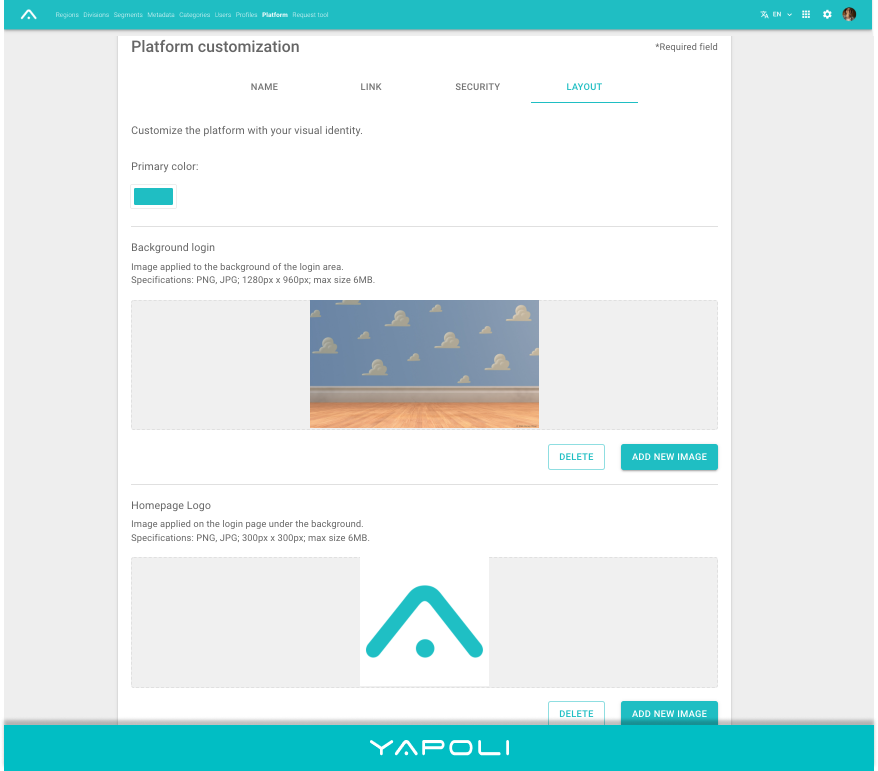
On the Layout tab you will find the specific fields for each image/logo that you can change.
They are: Background login, homepage logo, internal logo, e-mail logo, favicon, logo for top menu and sharing logo.
Step 4 -
To add the image/logo:
Drag the desired image to the indicated field or click to search for the image in your files;
To change the image/logo:
Click on the Add new image button and when opening the field, drag the desired image or click to search for the image in your files;
To delete the image/logo: Simply click the Delete button.
All the above options are automatically saved, however it is necessary to re-login to view the changes made.
Learn more: What is the primary color? How to apply?
How to change the name and description of the Platform?
Comments
0 comments
Article is closed for comments.